*You want to switch from Evernote to Anytpe, but you’re a bit overwhelmed and wondering how to recreate your environment? *
Anytype gives you a lot of freedom, so here’s a guide to one solution among many.
Recover your data
You can recopy them, or try an HTML export/import.
Or I’ve provided a conversion tool here:
Be aware of Anytype’s limitations
Depending on your needs, this may not be a problem. Or you may need to be careful about the content of some of your notes, so as not to lose anything.
Or it may even be advisable to wait… Anytype is slowly improving, so if there’s something important you’re missing, tell us about it!
-
Very limited simple tables: content can only be plain text (the converter lets you import tables with images or lists, but this is not officially supported).
So be careful if you have boxes with several images, files, lists, or a mix of text and something else, etc…
Note that the converter allows you to retrieve one (and only one) image or file in a cell, but this is not officially supported. Lists and checkboxes are converted so as not to lose anything. -
No tasks as Evernote v10
-
Less text formatting (limited colors, no superscript or subscript, no choice of font): no loss of data, but layout may need to be reviewed
-
No embed view of certain files (text, excel, etc.), no OCR in PDFs and images, much more limited searches, etc. Again, this can be annoying, but no loss of data.
-
More limited tags (no nesting), no view of articles when clicking on a tag, no list of tags in the sidebar (same, no data loss. In my case, this absence makes usage cumbersome, so I am waiting).
Create your notebook hierarchy
“My notebook” : one of your notebook
-
Rename your collection
If you import (with the convert tools or anything else), all your notes and files are in a time-stamped collection (Protobuf import) : rename it
If note, create directly a collection, name it and re-create your note in it. -
Filter your collection
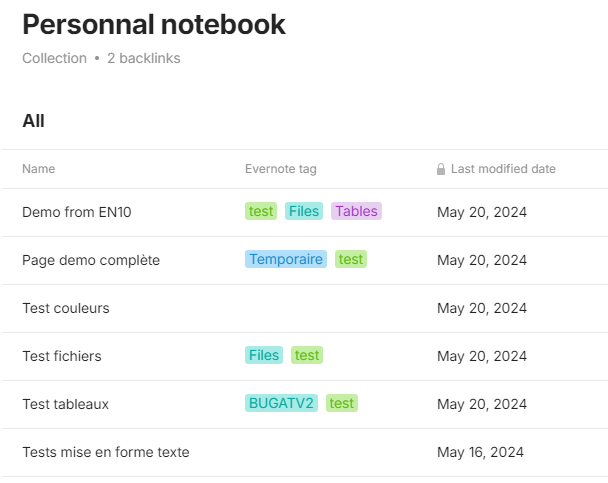
It’s important for import collection : by default, they display everything, including files. You should only have notes.
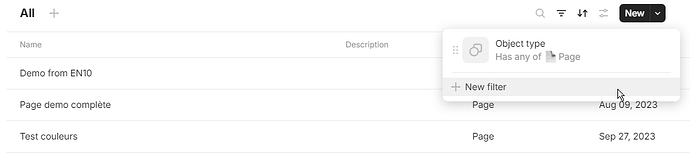
To display only notes and not files, filter : New filter > Change “Name” to “Object type” > Change “All” to “Has any of” > Add > Page
-
Choose your relations (property, tags, …)
I also recommend modifying the relations displayed. “Object type” is useless, hide it. Choose what you want. With converter, imported tags are in “Evernote tags” relation.
Nested notebook
You have nested notebook and want same here?
- Create a collection with the root notebook name, like “Notebook stack”.
Tips : you can add icon to stack collection, collections, and note. That's what I did in the screenshots, using Evernote icons to help you recognize the elements. Of course, here you can use nicer icons!
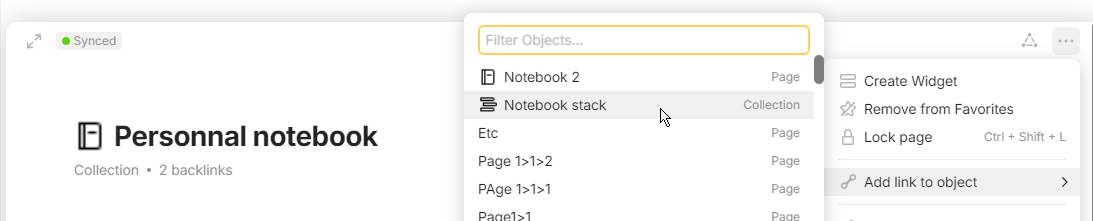
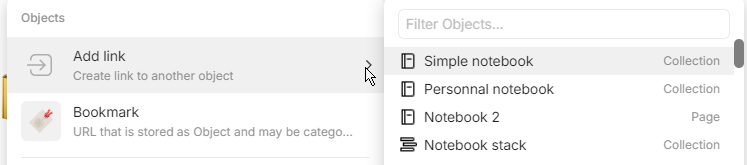
- Add you “Personnal notebook” to “Notebook stack” : Unfortunately, Anytype does not easily allow adding elements to a collection, which is really a shame. Therefore, you have to go back to your collection and Add lintk to > “Notebook stack”
Nested notebook in the sidebar
Now, let’s place your notebooks in the sidebar menu.
If you want exact same thing than Evernote, Evernote has “Notebooks” > “Notebook stack” > “My notebook”… yes, another level of nesting is needed.
But another limitation of Anytype: if you create nested collections, only the first level is visible in the sidebar; it’s impossible to ungroup. However, this works with objects like pages, for example. So, we’ll work with this and hope for an improvement someday…
-
Create a page “All evernote notebooks”
-
Add links to your notebooks or nested notebooks (type /link and choose them one by one)
-
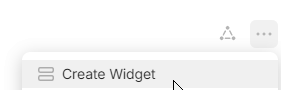
At the top right, click … and choose Create widget
Done!
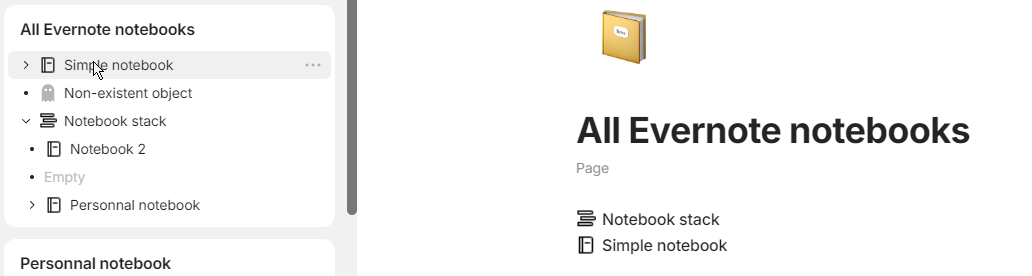
(yeah, Empty and Non-existent are bugs… I’ll update when ok)