Hello Community!
With this release, we’ve started moving all our team communication inside Anytype – and it’s stirred up both excitement and a little creative chaos, the kind that means things are moving fast. There’s something surreal and satisfying about building a chat experience while using that same chat to debate its details.
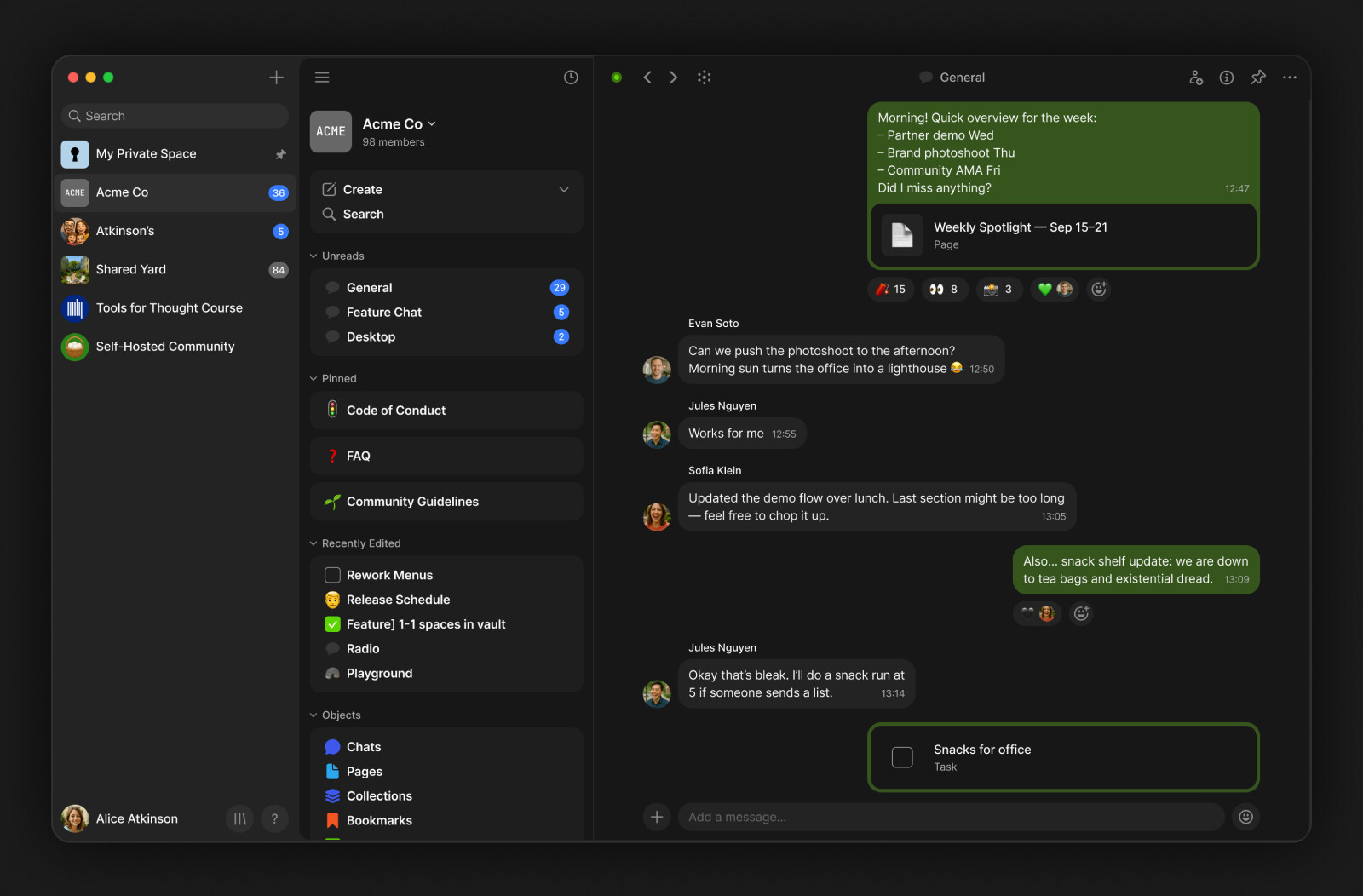
This update continues our work on Chats: now as native Objects within your Space Channel. You can create multiple topic-based conversations and connect them directly to the work they’re about. It’s one more step toward making communication feel as structured and interconnected as your knowledge.
We’re also reworking how navigation feels across channels, making it lighter, more consistent and compact.
And yes, there’s more to come. Some of you might remember our previous multi moment – the launch of Multiplayer Mode, our first steps into real-time collaboration. Now we’re going “multi” again – this time, multi-chats – and we’re bringing it to Product Hunt, where our Public Beta happened. We’ll share more very soon and keep you posted on what’s next at the upcoming Town Hall.
As always, your thoughts and feedback mean the world!
Multi-Chats in your Space
Space Channels now hold more than one conversation at a time. Start topic-specific chats right where your work happens – discussions now live alongside your notes, tasks, and documentation as part of your knowledge graph.
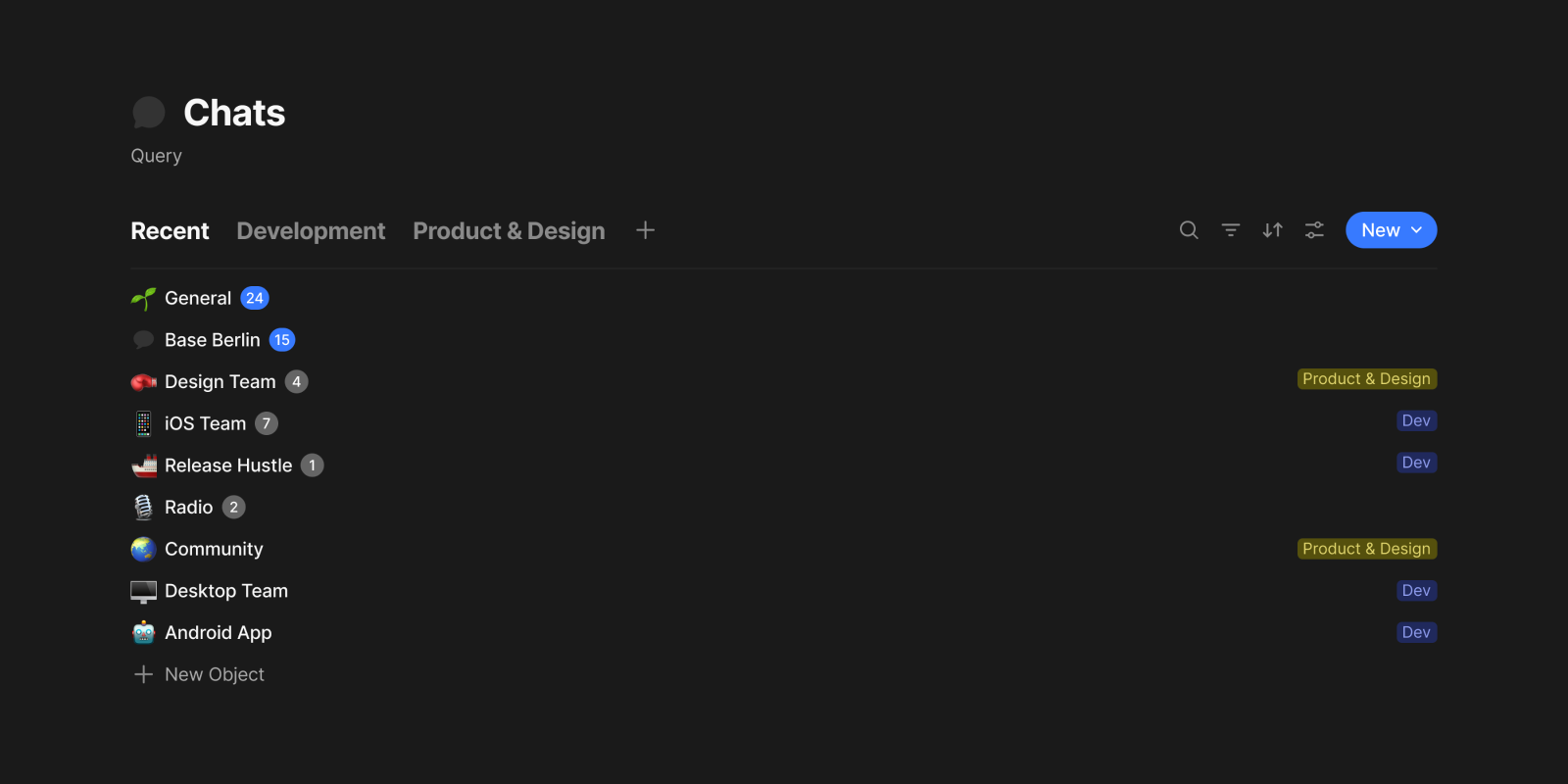
Chat as an Object Type
Chats are now native Objects in your Space. You can organize them into different views, assign tags to group related conversations, include them in Collections or Queries, and @-mention them from any Object for cross-referencing. As a system Type, Chat doesn’t support templates or layout changes.
Widget Behaviour
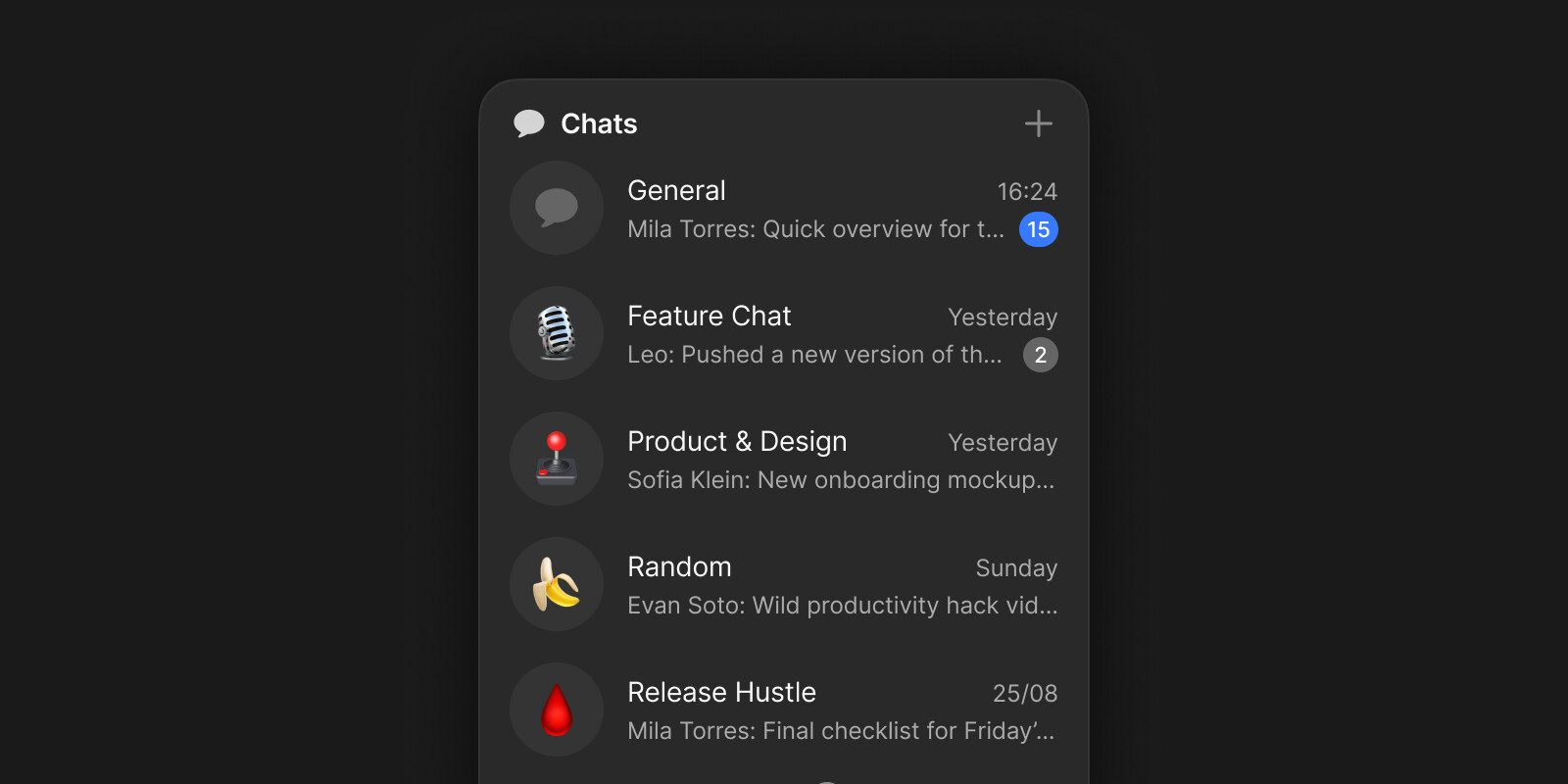
The Chats Type Widget works like any other widget: you can pin it to your Sidebar, adjust its appearance by choosing how many chats to show, and pin individual chats for quicker access.
Unlike other Widgets, pinned chats display counters and mention indicators directly in the Sidebar. A temporary Unread section also appears automatically when new messages arrive, listing chats with unread content.
Per-Chat Notifications
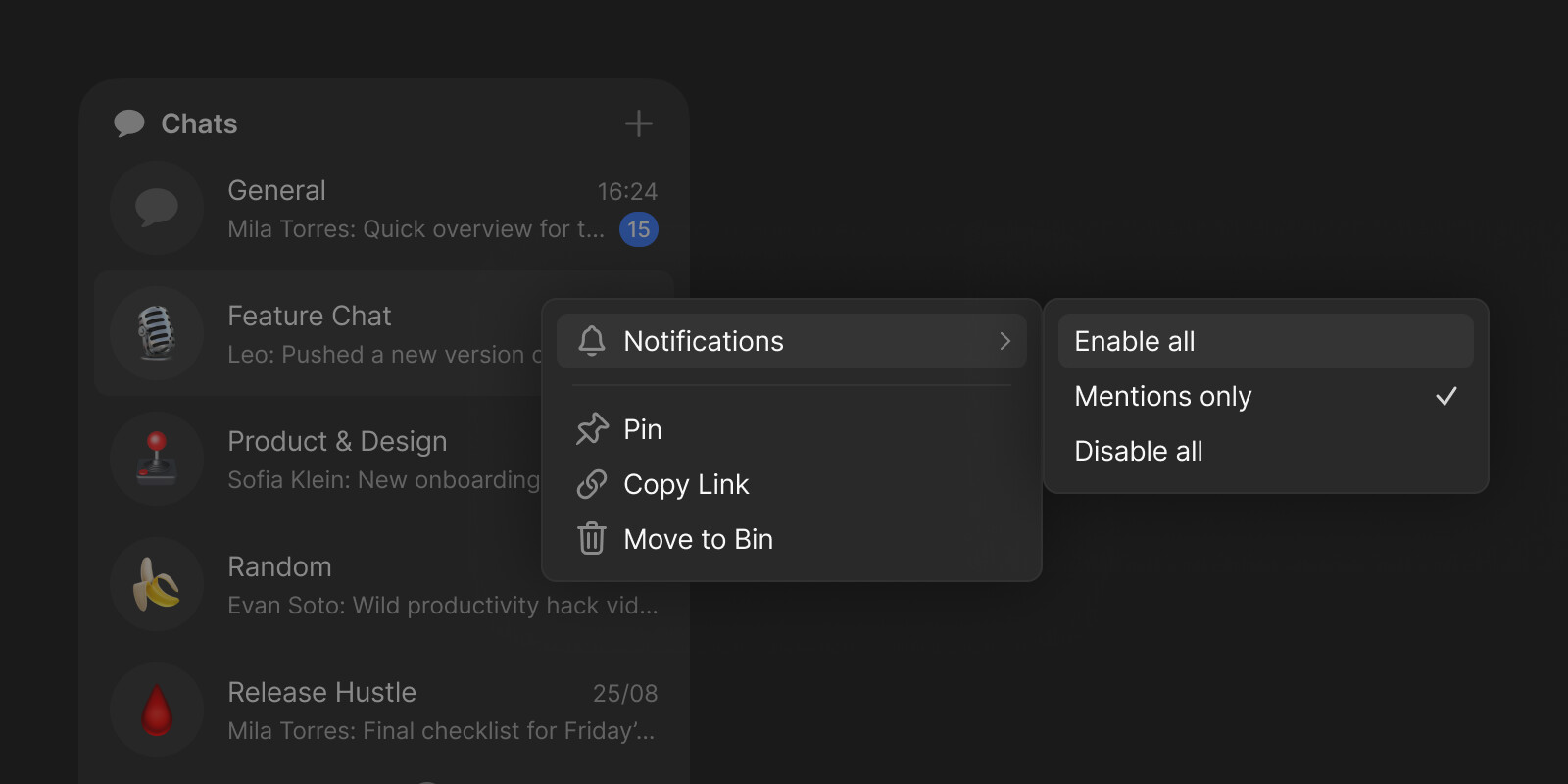
Right-click any Chat Object, or use the three-dots menu inside a chat window to open preferences and choose Enable all, Mentions only, or Disable all.
Updated Navigation
We’ve reworked the navigation layout for a more consistent way to move through your Channels.
Unified Sidebar
Both Space and Chat Channels now share a consistent left-side navigation. You can resize or collapse the Widget Sidebar to fit your workflow.
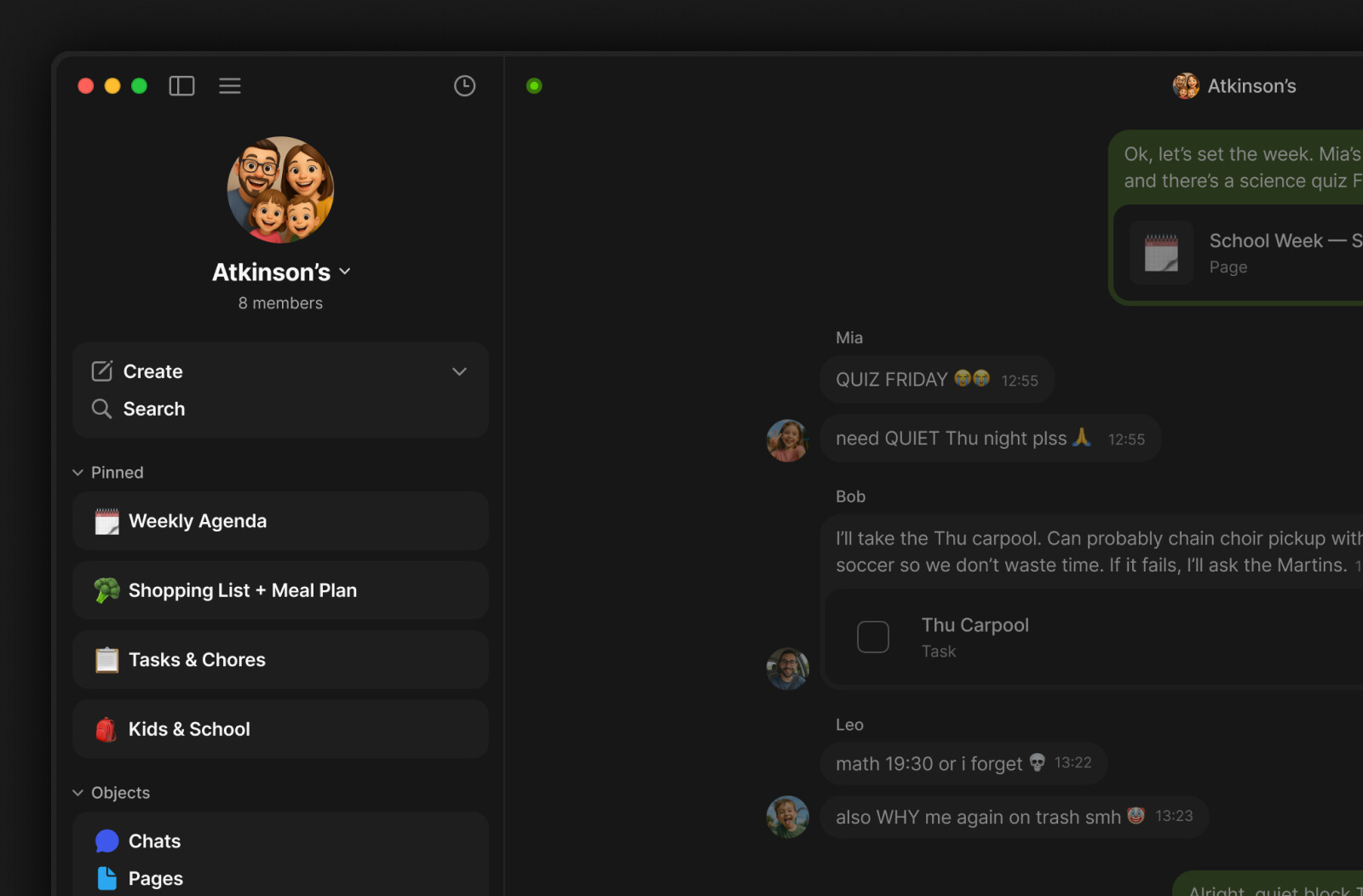
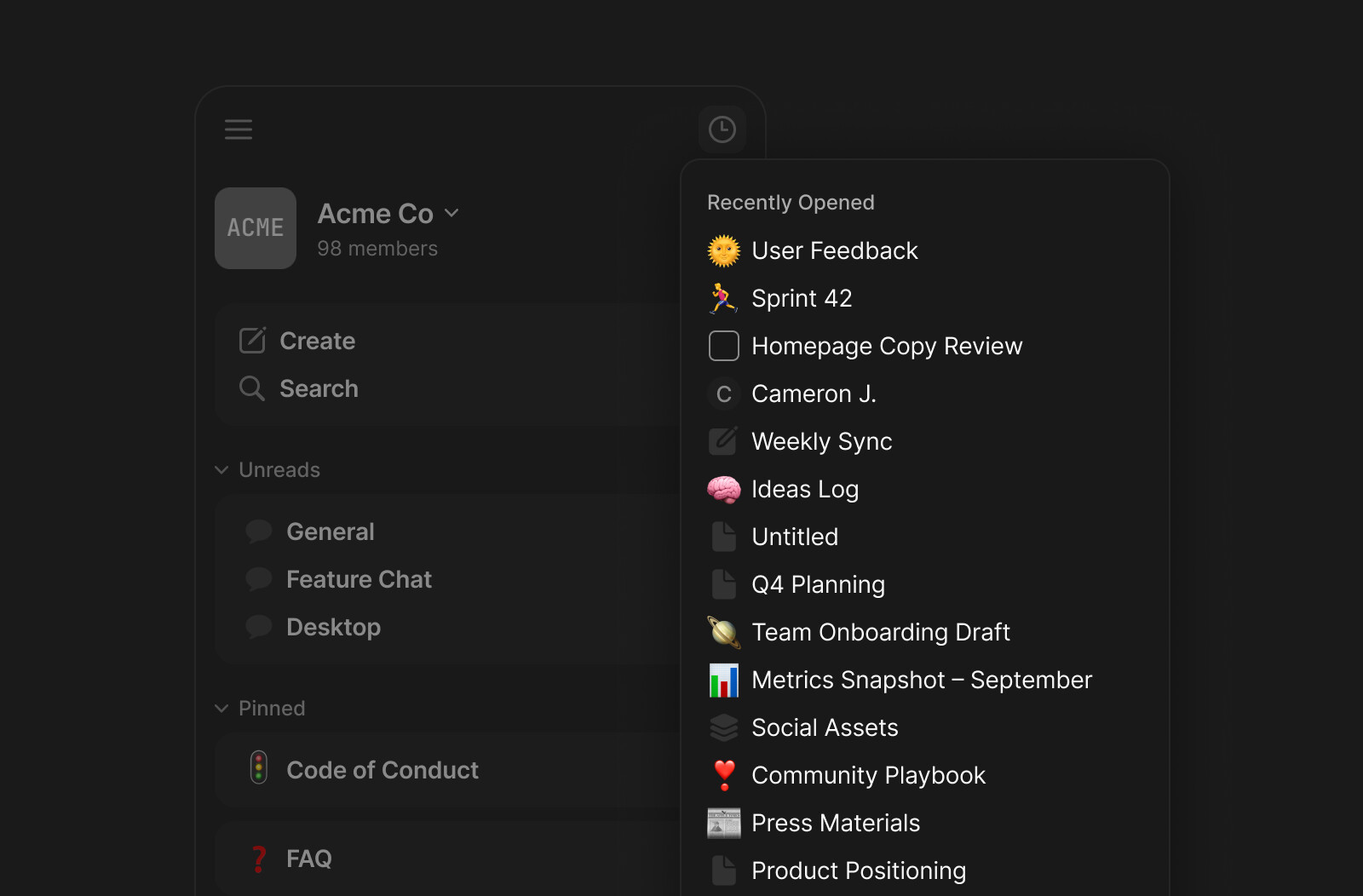
Recently Opened
Look for the clock icon at the top of your Widget Sidebar to open the history of recently viewed Objects.
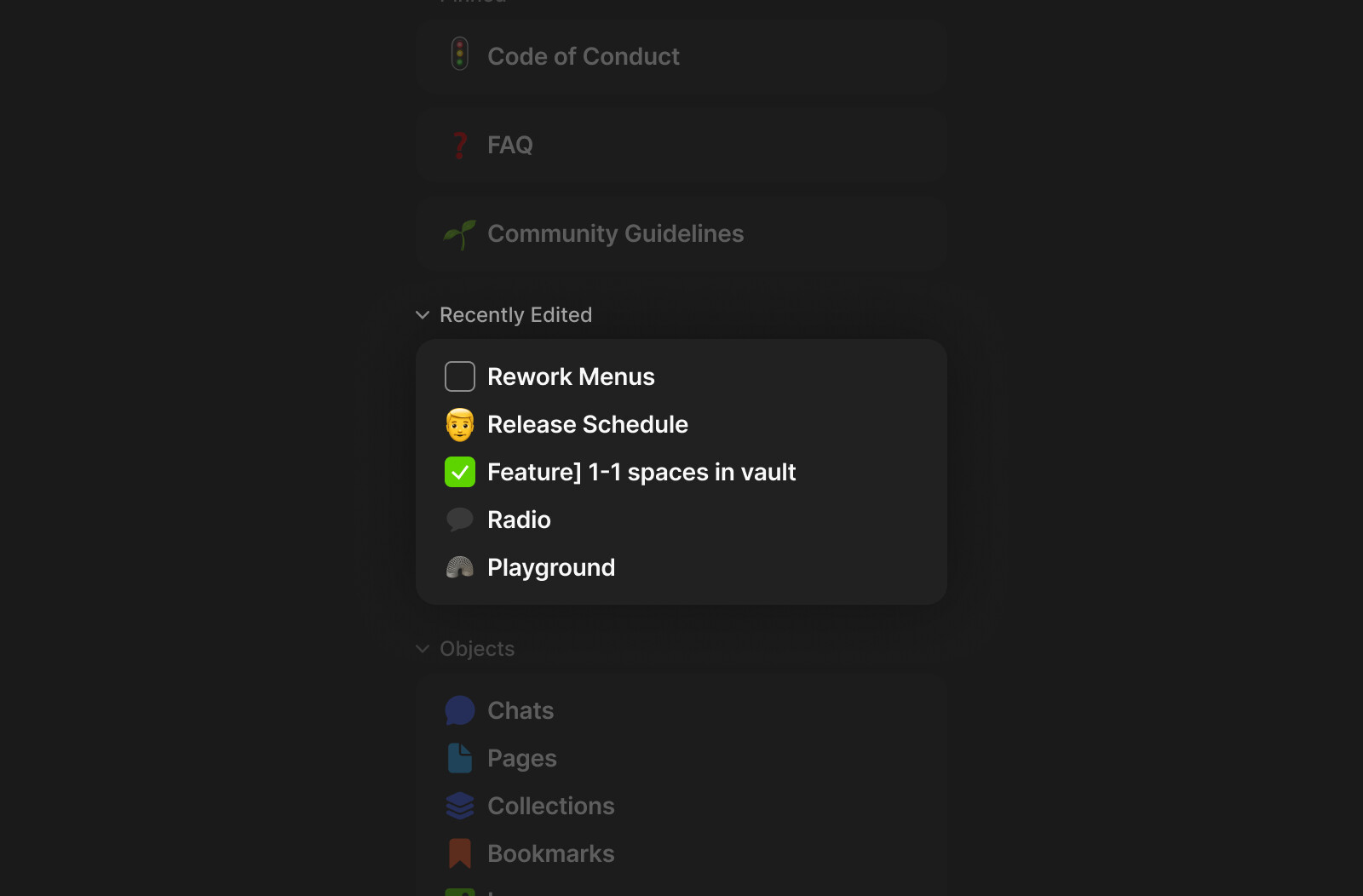
Recently Edited
In order to provide quick access to Objects you or your team have recently created or updated, we’ve introduced a new Recently Edited section. Support for personalizing the Widget Sidebar, such as hiding section you don’t need, is coming soon.
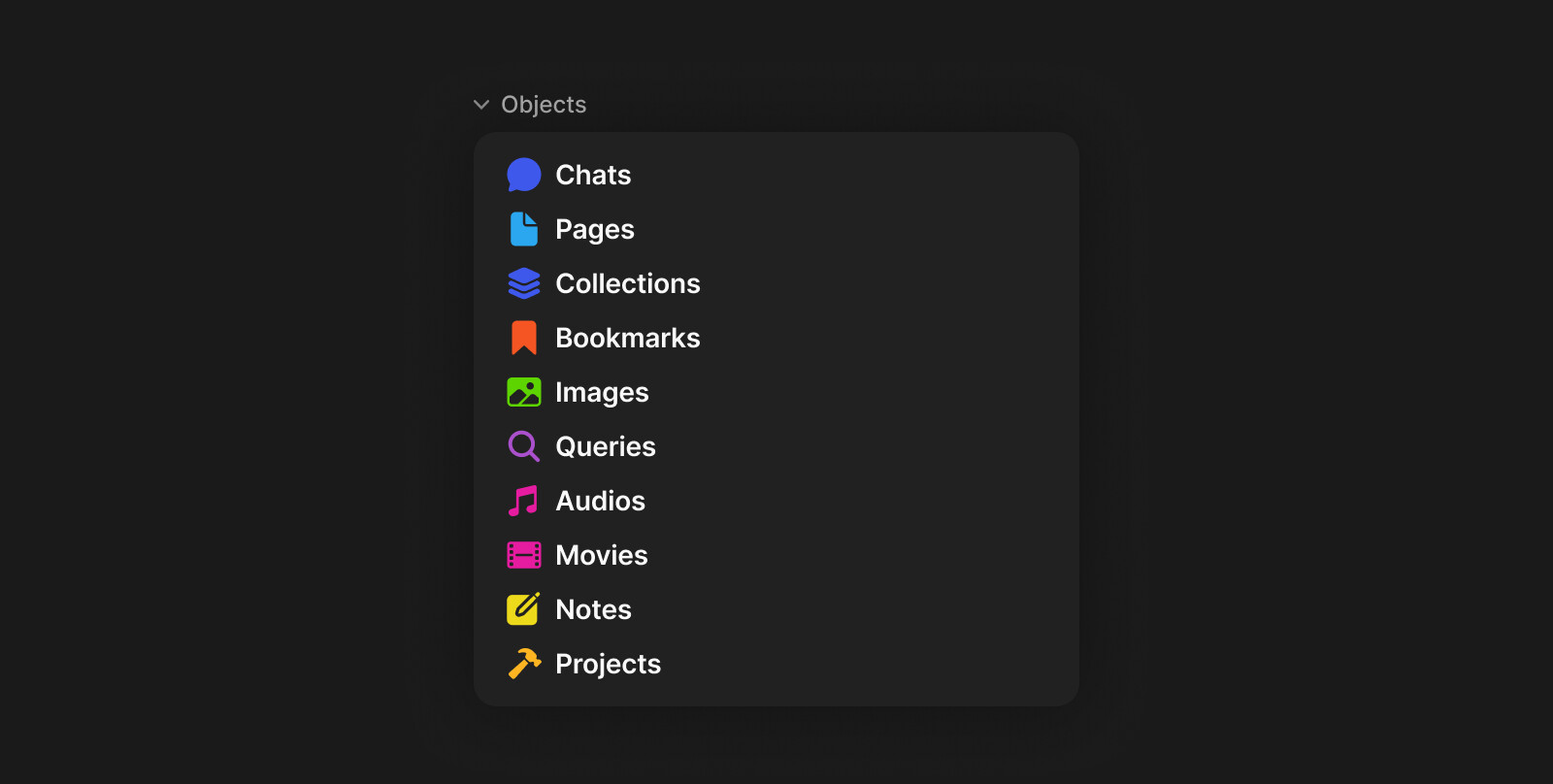
Objects Widget
The Objects section, which brings together all objects of a given Type, has been reworked into a single, unified view for more compact organization. Only Types with existing objects are shown – when you create a new object of a Type, it automatically appears in the section.
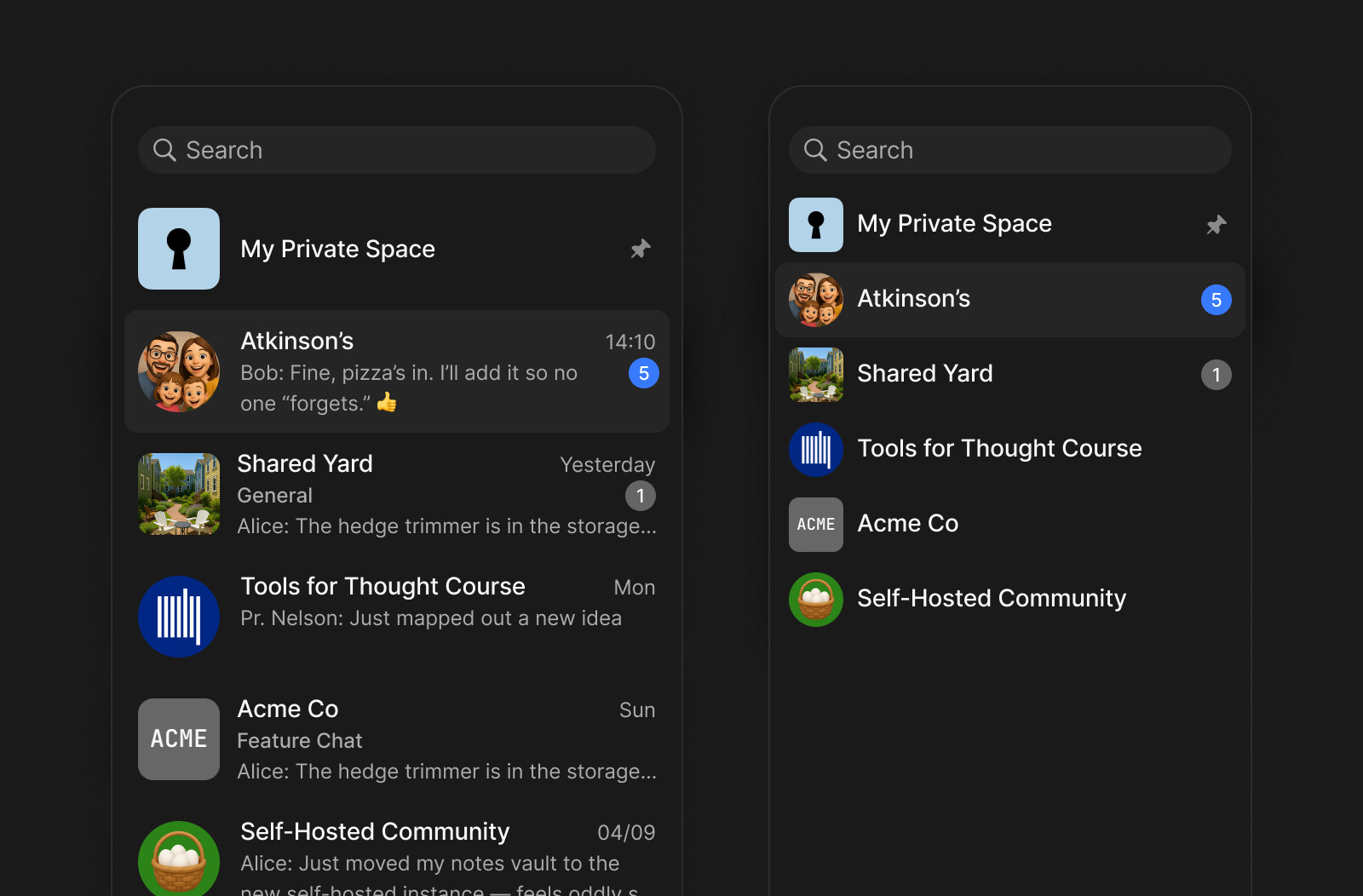
Compact Vault Layout
The Vault now takes up less space, leaving more room for your work. Choose between a simple list or a view with message previews in your Settings, and swipe it away when you need more focus.
We’re already working on a future iteration that will support an icon-only Vault view for an even more minimal navigation experience.
Channel Context Menu
The Context Menu has been updated and now surfaces key actions when the Vault is hidden. Alongside Channel Settings, it includes Pin and Mute options, Copy an Invite Link, and – importantly – access to the Bin.
Quality of Life Improvements
Manual Sorting in Queries
You can now manually reorder Objects in Queries. The chosen order persists per View, giving you more control over how your lists are organized.
ExcaliDraw
Added support for embedding the Excalidraw editor as a block – finally bringing quick diagramming into your notes and documents.
Smart Typing
Added support for more symbol patterns – for example, typing != now converts to ≠ and ~= to ≈, alongside existing arrows, comparison, and operator shortcuts. Thanks to @larsb24 for the contribution!
Send Message Preference
Choose your preferred way to send messages: Enter or Cmd + Enter.
Copy Message with Formatting
Keep text styles intact when copying Chat messages.
Zoom in the Image in Preview Window
You can now zoom into images in the preview window for a closer look.
Bug Fixes
Queries & Views
- Gallery cards with covers no longer “jump” briefly when opening Queries in Gallery layout. Thanks to @VisualNotes!
- In Kanban/Gallery cover settings, hovering “None” now shows the correct hover state. Thanks to @Exodes!
- Calendar view in Queries set from a Date property now places objects according to that property.
- Property headers in Grid view remain visible while scrolling large results in Query. Thanks to @Chrispy163!
- Kanban sorting updates automatically when adding a new Object.
- Fixed an error when selecting or creating a Status property option in Query.
- Fixed misalignment of Inline Query background color with cards in Gallery view. Thanks to @zma17!
- Creating an Object in Kanban view within a Query grouped by a property now correctly assigns that property to the new Object.
- Creating a Task in Kanban view within Inline Query no longer spawns duplicate entries. Thanks to @juhis!
- Property menus within Query views remain fully visible when the right sidebar is open. Thanks to @krst!
- “Select source” menu in Inline Query opens at the correct position.
Vault & Widget Sidebar
- The last Channel in the Vault is no longer hidden by the gradient. Thanks to @Shampra!
- Widget no longer changes height when switching to Kanban/Calendar layout from Compact/List.
- Kanban view in Object Type widgets now loads correctly after reload. Thanks to @siousu!
- Widgets set to “Same as in object view” keep their state when switching Spaces. Thanks to @dzlg!
Editor & Blocks
Ctrl+Xno longer moves the cursor to the previous block. Thanks to @Anani!- Adding “New Property” block from the slash menu inserts the block reliably.
- Hovering “Add File” or “Add Link to Object” in the slash menu shows the correct sub-menu.
- Code blocks: single
$, quotes, brackets, and backticks place the caret correctly and [ now auto-closes. - Korean IME input in code blocks preserves all composed characters. Thanks to @geesecross!
- Two-column layouts (text/image): hover no longer triggers unnecessary scrollbars or column shifts. Thanks to @VisualNotes!
- Simple Table color picker shows the true active background color. Thanks to @Code-Jack!
- Selecting a row in a Simple Table no longer blanks the screen. Thanks to @Shampra!
- Fixed a performance issue where documents with complex inline LaTeX caused the app to freeze.
Chat & Messaging
- Pasting styled text in Chat no longer shifts the surrounding text style or caret position.
- Mentions after long messages with a preceding line-break open the mention menu reliably.
- Mentions no longer jump when toggling Show more/Show less in Chat.
- Opening oversized files from a shared Space message no longer throws an error.
- “Add reaction” option is hidden when a message already has the maximum number of emoji.
- Fixed the width limitation for attachments in messages.
Table of Contents
- The control is now hidden when its sidebar is open to avoid displaying a duplicate ToC. Thanks to @VisualNotes!
- ToC control icons in a modal window render at the correct horizontal position. Thanks to @VisualNotes!
- ToC sidebar’s close button works correctly. Thanks to @VisualNotes!
- ToC control icons repositions correctly when window width changes after closing a popup.
Modal Window Mode
- Context menu in a modal window opens next to the Editor. Thanks to @VisualNotes!
- Editor reliability restored after reopening an Object in a modal window: cut/paste/delete text continue to work as expected. Thanks to @VisualNotes!
- Local search in a modal window now correctly scrolls to the first match within an Object. Thanks to @Code-Jack!
- App window can be dragged while an Object is open in a modal. Thanks to @Sean-lee!
- Kanban view opened in a modal window no longer shows “Untitled” Objects. Thanks to @siousu!
- Content under a modal window expands correctly when resizing.
Create & Edit Type
- Creating a new Type no longer shows an incorrect placeholder text.
- Edit Type sidebar opens the correct type context after closing and opening another Object in a modal window.
- Changing an Object’s layout (e.g., from Profile to Action) in Edit Type applies correctly.
- Editing the plural name in Edit Type no longer moves the cursor back to the singular field. Thanks to @VisualNotes!
- Opening the Template’s menu works as expected.
PDF Export
- Fixed an issue where PDF export got stuck in preview mode after a file write error. Thanks to @Hexara!
- Printing/exporting pages with embedded PDFs now scales/centers the PDF block correctly. Thanks to @Loriand!
- Export to PDF includes all pages and removes stray scrollbar imagery. Thanks to @epdaei!
Navigation & Window Management
- Fixed navigation for a specific Type page so Back/Forward work consistently. Thanks to @Hexara!
- Dragging to open the Property panel no longer results in an empty state.
- Right sidebar preserves its height when the app window is resized.
- “Show/Hide Menu Bar” shortcut on Windows now toggles this option in App Settings consistently.
Search
- Deleting an Object immediately removes it from Global Search results.
- When creating a new Object from a Widget’s Search (New), it immediately appears in results.
Permissions & Access
- Clicking between “Editor” and “Remove” no longer triggers “Viewer” when changing Members Access.
- “Join by invite link” field focuses correctly on pasted text.
- Join requests are hidden for non-owners of a Channel.
Miscellaneous
- Windows app icon is now crisp and correctly sized in Start menu and Taskbar. Thanks to @j17!
- Links to deleted Bookmarks are marked as “Deleted” upon returning to the page that contained them. Thanks to @cicko!
Starting with the next release, we’ll be ending support for macOS Big Sur. This change follows Electron’s decision to drop Big Sur support beginning with version 38.0.0


 Edit: oh, I see you did already!