Hello Community!
We’re thrilled (and slightly terrified) to announce what might be our most controversial release yet: Chats are here. They work, they’re ready, and yes – we’re as surprised as you are.
Our team has been building this with equal parts code, blood and tears. Underneath, the core tech has been upgraded – unlocking the way to long-awaited features you’ve been voting for, like reminders, formulas, transclusions (don’t ask), and more. Chats is the very first format powered by this next-gen foundation.
The best part? With this new tech, we can finally move faster, despite being a smaller, mildly sleep-deprived team. We hope some of you find strong use cases for Chats and even feel bold enough to invite your family, friends, or maybe just that one group chat you’re scared to open. If you do have a great use case (say, for your student group), write to support and we’ll give you a special plan for free. Invite your friends and, because we’re feeling generous, we’ll give them one too.
Fair warning: some things aren’t finished. Navigation for Spaces, for example, may feel like a step back before it becomes a giant leap forward in future releases. We’d love all your feedback, ideas, or even just kind words to keep morale alive.
And… please join our shiny new community chat inside Anytype. It’s like this announcement, but with even more people and probably better jokes.
And now, the part everyone scrolls to anyway: official release notes.
It was a note from Anton.
Welcome to Chat
Chat is a new type of channel in Anytype, designed for fast, conversational flow.
It gives you the familiar rhythm of chatting – replying, reacting, sharing files – but with a powerful twist: you can create and edit objects together in real time.

Create Objects right from your chat window – turn thoughts into Pages, Tasks, or any other Type.
Share existing Objects – anything you drop into Chat can be opened and edited right away.
Keep things organized – uploads are added to the relevant Types (Audio, Images) and everything stays searchable and structured in your sidebar.
Invite with ease – bring new members into a conversation instantly with links that don’t require approval.
You can switch between two formats: Chats and Spaces in their settings. You choose what is better for your use.
The Vault Update
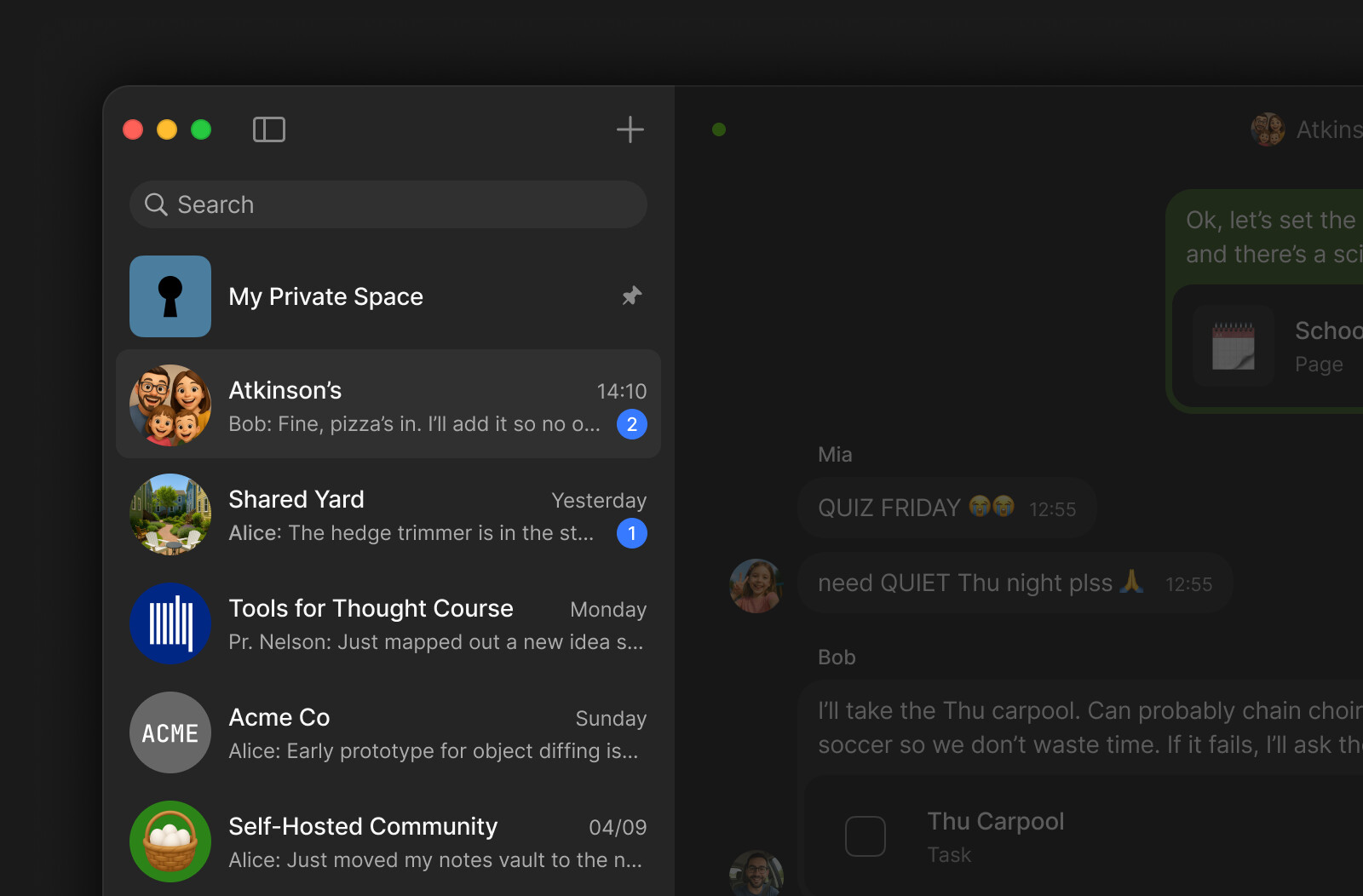
Your Vault now brings together Spaces and Chats with live previews and updates in one view. You can pin important chats or spaces so they’re always within reach.
When you’re in a Chat, the Vault shows all your conversations at a glance, making it easy to switch between them and stay in the flow. Step into a Space, and the Vault shifts its focus so you can concentrate on it.
Widget Bar Restructure
We’ve reworked the Sidebar to create a clearer navigation model. The goal was to clarify the difference between shortcuts and containers.
The Sidebar now has two distinct collapsible sections:
Pinned → All the widgets you had before, kept close at hand as shortcuts.
Objects → Previously accessible only from Settings, these containers list all objects of a given Type and work just like widgets.
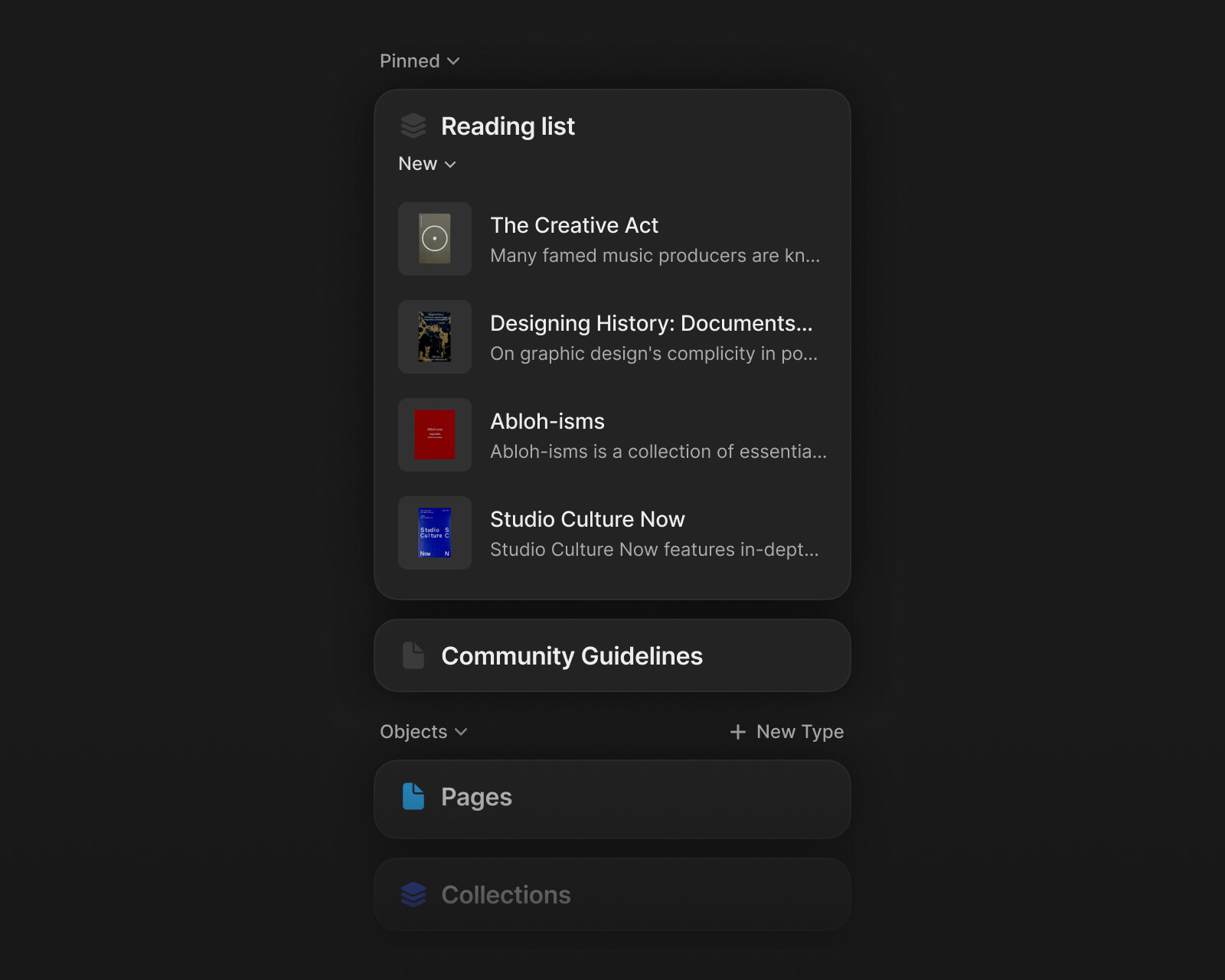
Everything you had pinned before is preserved in the Pinned widget. You can re-pin what’s needed in a new way and remove the “old” widget.
If you have been using Recently Edited or Recently Opened, those widgets remain, but once removed they can’t be added back. Instead, you can always create Queries to show objects by their creation or modification date.
At the same time, we’ve removed duplicate flows like the Edit Widgets button and All Objects, so there’s now a single, unified way to pin and organize.
Quality of Life Improvements
Manual Sorting for Property Options
Options in Select, Multi-select formats – as well as a Tag property – no longer follow automatic alphabetical or creation order. You can now drag and drop them into a custom sequence, which is saved across devices and applied consistently in Queries and Collections. New options are added to the bottom of the list.
App Menu Update on Windows
The top bar has been redesigned with a cleaner menu that feels more consistent: it now works seamlessly in Dark Mode and is better tuned to Anytype’s overall design.
Enter Continues List, Backspace Removes Style
Pressing Enter after an empty Bullet or Numbered block now continues the List. To remove the style, use Backspace instead.
Bug Fixes
-
Chinese IME input before formatted content no longer causes unintended style changes. Thanks to @yudi-corgi for reporting and @twinklestar03 for contributing the fix!
-
Table of Contents correctly highlights the current position on a page. Thanks to @VisualNotes!
-
Restored
control-clicksupport on macOS for opening object menus. Thanks to @mkjohnnie for the report! -
Shortcut
control-clickto open objects in a new window works correctly in Queries and Collections. Thanks to @leblanclxd! -
Right-clickon the Graph view in Widgets works correctly. -
Options in Select and Multi-select properties are now created correctly.
-
Code Snippet embed block now handles input correctly, including when typing in Python or HTML language mode. Thanks to @Cash!
-
Deeplinks now work correctly and open the target object from outside Anytype. Thanks to @siousu!
-
See All in Widgets has increased limits for displayed objects, making it possible to browse large lists in the sidebar. Thanks to @wyn!
-
Improved drag-and-drop behavior in Kanban view.
-
Improved Global Search performance, fixing freezes after creating objects with Cmd+N and ensuring results display correctly.
-
Pages with a cover image and minimal content no longer scroll unnecessarily. Thanks to @VisualNotes
-
Fixed an issue where opening certain spaces created on mobile caused the desktop app to display a blank screen. Thanks to @fei for the report!
-
Browsing history is preserved after hiding and reopening the Widget Sidebar. Thanks to @Shampra!
-
The calendar pop-in when selecting a date via @date no longer appears behind the menu. Thanks to @rphlm!
 ??? Now we’re talking!


