What Do You Recommend?
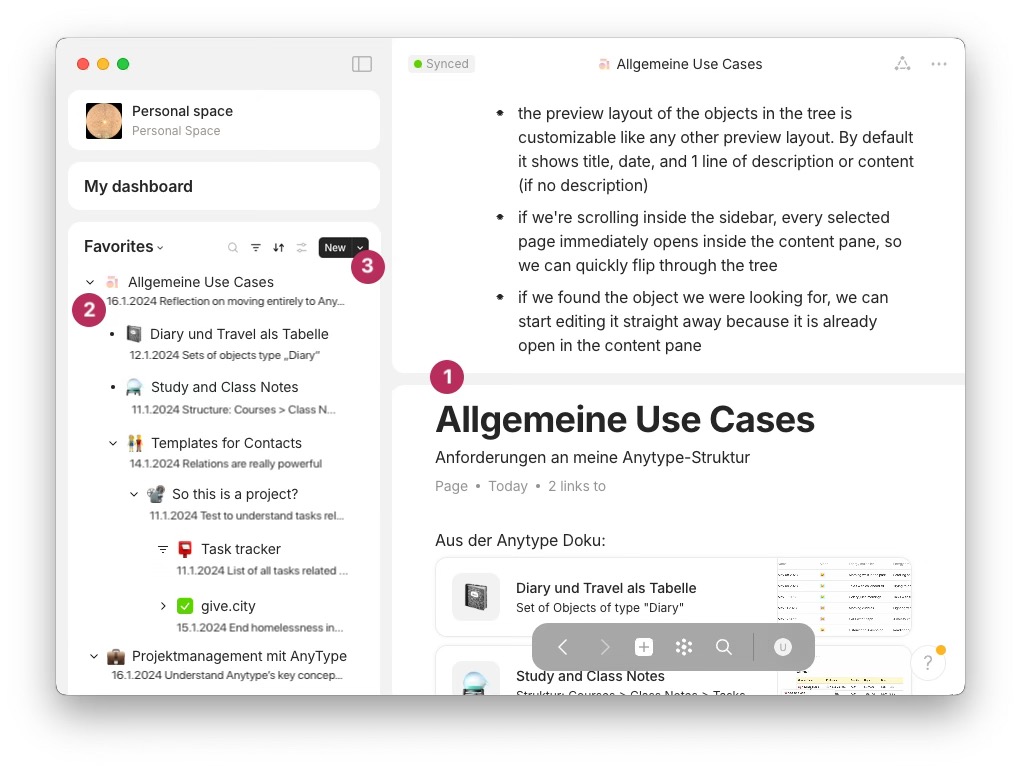
Scrolling and flipping through lists of objects in the sidebar could be easier, using the cursor keys in the list, and immediately seeing the related object open in the content pane.
Also, lists of objects in sidebar widgets should have a preview layout and filter/sort options like list objects, so that e.g. the date and description can be shown underneath the title.
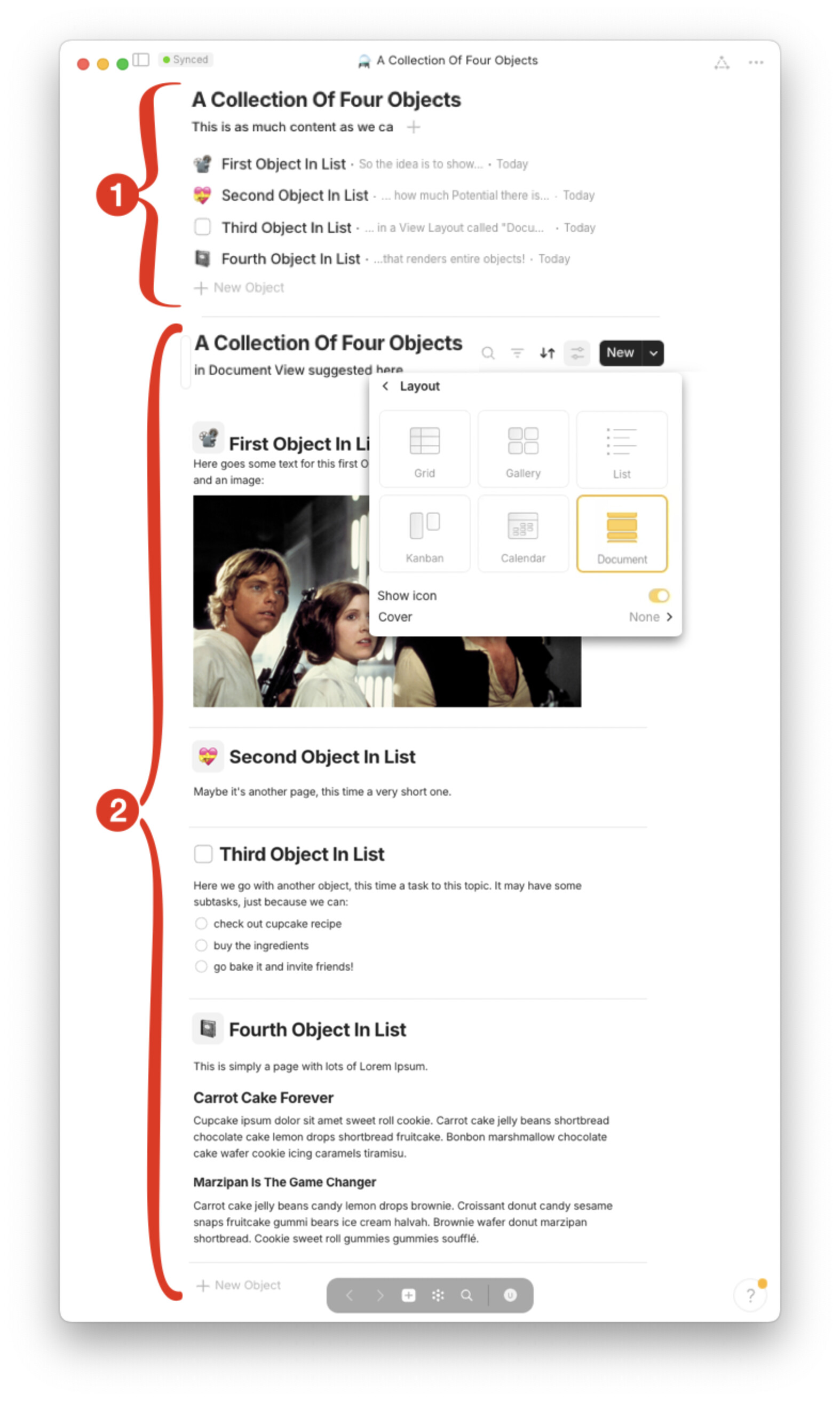
Lastly, it would be brilliant to scroll through lists of objects in the content pane to the right of the window, by rendering all listed objects underneath each other.
This way, journals, diaries, task lists or book subchapters etc would be much easier to read, and printing a list of objects to a single PDF would be possible.
Update 18.1.2024: This related posting proposes the essence of the suggestions below as a separate feature request, with a new mockup.
How Could It Be Done?
The attached screenshot mockup shows how it could be done:
- In the content pane, let users see concatenated objects one after the other, instead of just showing one object at a time.
- In sidebar widgets, a preview layout and filter/sort options can be applied to the tree, list and compact list appearances, so that e.g. the date, description and icon can be shown or hidden underneath the title.
- Widgets and list objects could be made one-and-the-same, in a way that list objects’ view/filter/sort options are added to sidebar widgets, and the tree view is available for list objects.
Image or Video
Real World Use-Cases
I’ve monitored how I use Notion, Apple Notes, and Evernote today. Basically I’ve observed four typical use cases. So in Anytype, the flow should be as follows:
First use case: Create random new topic, e.g. a new project:
- create new object with ⌘-N shortcut or
 button
 - capture content in new object
- link new object to some existing object, e.g. in a MRU list, or by copying the new object’s URL to the clipboard, and pasting it as a new link with preview to some existing “parent” object
- link to new object gets added to the bottom of to that existing “parent” object
Second use case: Add new item to existing topic, e.g. “another call with Dave”, “new idea for topic” or “new subchapter for book”:
- start a new “child” object inline at existing parent object
- while editing the new child object, be able to scroll up and down in the page to review already existing child objects above and underneath
- optionally, minimize child objects on the page to some smaller concatenated preview layout
Third use case: Navigate existing objects by scrolling through the tree, like in most Email or Notes apps:
- open a tree of objects in the sidebar
- scroll up/down through the tree, with cursor keys and/or scroll bar
- use cursor keys to navigate the tree up/down/in/out/pgUp/pgDn
- the preview layout of the objects in the tree is customizable like any other preview layout. By default it shows title, date, and 1 line of description or content (if no description)
- While we’re navigating in the sidebar using the cursor keys, every selected page immediately opens in the content pane, so we can quickly flip through the tree, reading the objects in the content pane.
Fourth use case: Find an existing object using queries or keyword search:
- navigate to a list or tree widget in the sidebar
- using the same controls as in list objects today, specify a query inside that list, with keyword search, filters or sorting
- navigate the resulting tree as usual, but seeing only items that match the query.
Recommended Alternatives
To see a list of objects with date and description, and to apply filters and sorting, is possible in list objects, but not yet fully in widgets and their “appearances”.
However, afaik in AT there’s no way yet to scroll through (or to print) all queried objects as a natural “concatenated” sequence, even though reading subchapters, notes, tasks, or images chained together one-after-the-other would be the natural way.
At best, one can manually lump together all subchapters, notes, tasks, or images into one page object. But that way, one loses the ability to attach individual relations (tags, dates etc) to each of these objects, and they can’t be used elsewhere as they’re now buried in that collector object.
In a 1:1 conversation last summer, @Charlotte therefore recommended to have each note or task etc as an object of its own, instead of lumping them together into a single page. However, having to open and close each of them one after the other is really a different (and unnatural) reading and editing experience, compared to reading them all underneath each other in full.
Alternatively, one can scroll through a list of truncated preview layouts, and open and close individual objects manually, but that’s much more cumbersome and unnatural.
The transclusion FR, the FR for blocks-as-objects, and this suggestion for a new preview layout that shows objects in full size instead of only truncated would all be alternatives for the same need. Also, this FR would solve the FR for a better Table of Contents.
Ideally — if blocks-as-objects isn’t possible due to architecture constraints — we offer both, (1) natural sidebar navigation and concatenated reading as suggested here in this FR, and (2) a full-size list object preview layout and/or transclusion.