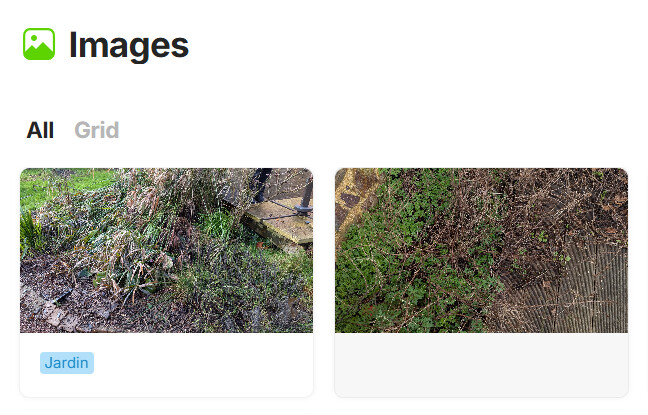
Btw.: I wish a quicker way to add & edit Tags especially for images inside of Objects.
Each time when I paste an image, I need to open it as an Object, to edit its name and to add Tags.
It’s very cumbersome.
I never made a request for that, assuming the team must be aware of it. But seemingly they don’t work much with images?
There could be a whole “media management” project… but that would mean waiting until after Collection V2.0, Editor V2.0, etc… so it’s better to integrate that into those projects so we don’t have to wait as long
Hey @Shampra ,
there is a way to quickly add tags in a Gallery View.
You need to add the Tag Property to the Grid View. Then switch to Gallery.
Now you can quickly add Tags. See the video:
Edit:
Oh, it’s not necessary necessary to switch to the Grid View first only to modify it.
You can activate/deactivate the Properties direct in in Query’s/Collection’s settings menu.
Simply activate the switch for Tags.
Edit 2:
Oh no, I just found out that it’s not so easy as it looks in my video.
In my video it works flawless, because the images already have had at least one Tag.
– In this case, it’s easy to add more Tags, or remove them.
BUT: if an image has no Tags, the line for the Property doesn’t appear.
therefore it’s not possible to add a first Tag to it.
– Sorry, mate!
@kaye Wow, I’m buffled, because you have these edit buttons on the right upper corner of the images.
Why don’t they appear for me?
No matter where I move the mouse and click, there is not such a functionallity for me.
I’ve tested all three card sizes. I also testet the switch “Fit media” on/off. But no chance, I don’t get the edit functionallity, the button simply doesn’t appear.
It appears on all of my gallery card sizes. Possibly an alpha thing? I’m not sure because I’ve never tagged any of my images using this workflow before.
Could you please clear it up if it’s an alpha thing?
Because if not, then I need to report it as a bug.
And may I ask you what’s your workflow to tag images?
– Tagging them from the Galley View is (or would be) the most comfortable and efficient way, IMHO.
Because it’s painful cumbersome to tag them from inside an open Page.
How do you do it, usually?
Now, yes. But that wasn’t the case when the post was created; we couldn’t edit them at all (and my property was active—see the first image, where the property is clearly visible)
Yes!
The user experience can always be improved, of course, but I’m not sure how, and as it stands, it meets the need:
If the tag exists, you can edit it directly (I’m not sure since when, but that wasn’t the case when the post was made)
If it doesn’t exist, clicking “Edit” lets you enter it quickly.
Now we just need to get this into our versions. I can confirm that I don’t have it in the latest alpha (0.55.10-alpha) either ;-).
Oh, and being able to navigate between records would still be super useful!
(and it would be nice to have larger images in gallery grid view, too)
Ooops! Grid view, not Gallery view of course!
It only displays an… icon for the image. So when you have a long list to work through (tagging, renaming, etc.), I personally can’t recognize the images.
And for everyday use (like comparing photos), and since there’s no V2 grid view… well, I don’t use Anytype. It wouldn’t replace V2 grids, but I often still want to see my photos in a grid format or view.
There’s List layout with Regular mode which has image thumbnails slightly larger than Grid layout. You could the zoom in (and hide sidebars) to make them even larger if you prefer. However neither of those views were designed for that workflow, I suppose gallery is meant for that.
And what do you mean by v2 grid view? As in your want a side-by-side photo viewer?
Darn! I really should avoid using automatic translation to save time AND without proofreading—sorry!
Table V2, not Grid V2
Thanks for the tips about List with regular (I still use the Compact version). It is indeed a bit larger.
But here’s a screenshot of my database with hundreds of photos. For me, It’s still too small to correctly identify each photo (I had given up).
I agree with @Shampra .
The icons are much too small. Also the slightly larger icons in the List View are still too small.
A quick solution could be a mouse hover effect, where the preview icon enlarges while the mouse hovers over it.
But it would be important that the enlarge on hover reacts VERY fast!
If there are 200 or more images, it would drive the user mad if he would need to wait for a second for each icon to enlarge while he hovers it.
Even a fraction of a second would be too much to feel comfortable.