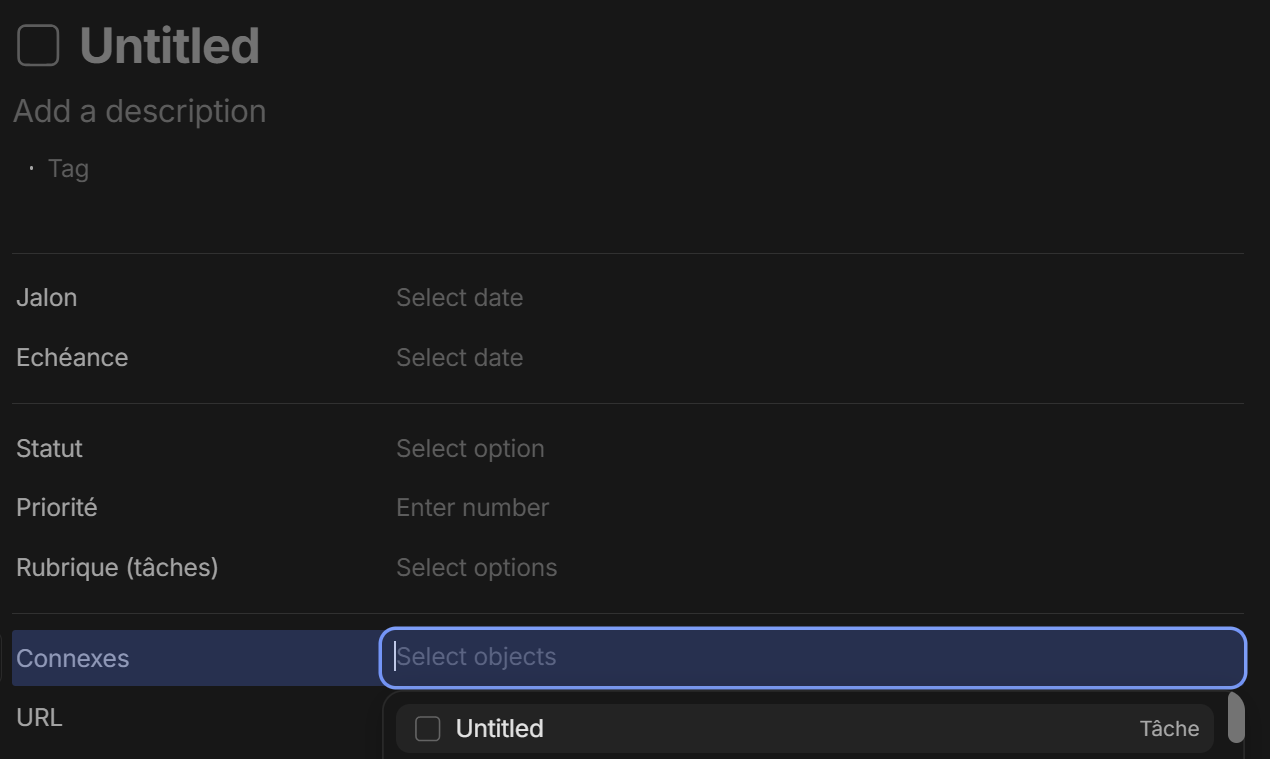
Detail what the bug does or prevents from doing: When inside a “Property: Object” within an object, I cannot add other objects because no other object in the space is found. However, there are other objects. This happens in Objects of Type “Task” with a custom default template I built. In this template, the property is directly inline in the body section.
HOW TO REPRODUCE IT
See attached screen recording.
THE EXPECTED BEHAVIOR
Describe what you expected to happen: When I search for objects to link, I expect to see the list of objects available in my space. The expected behaviour is shown nicely when I use the feature “Add link” in my screen recording above.
Thanks for the detailed video, that’s really helpful — it narrows things down a lot.
Our current suspicion: the Connexes property may be restricted to one or more specific object types, and the app is finding no
objects of those types — but instead of telling you that, it just shows the empty “Objects not found” screen with no explanation.
We’d like to confirm that before we fix it.
Could you help us with a few checks?
What the property looks like on Android
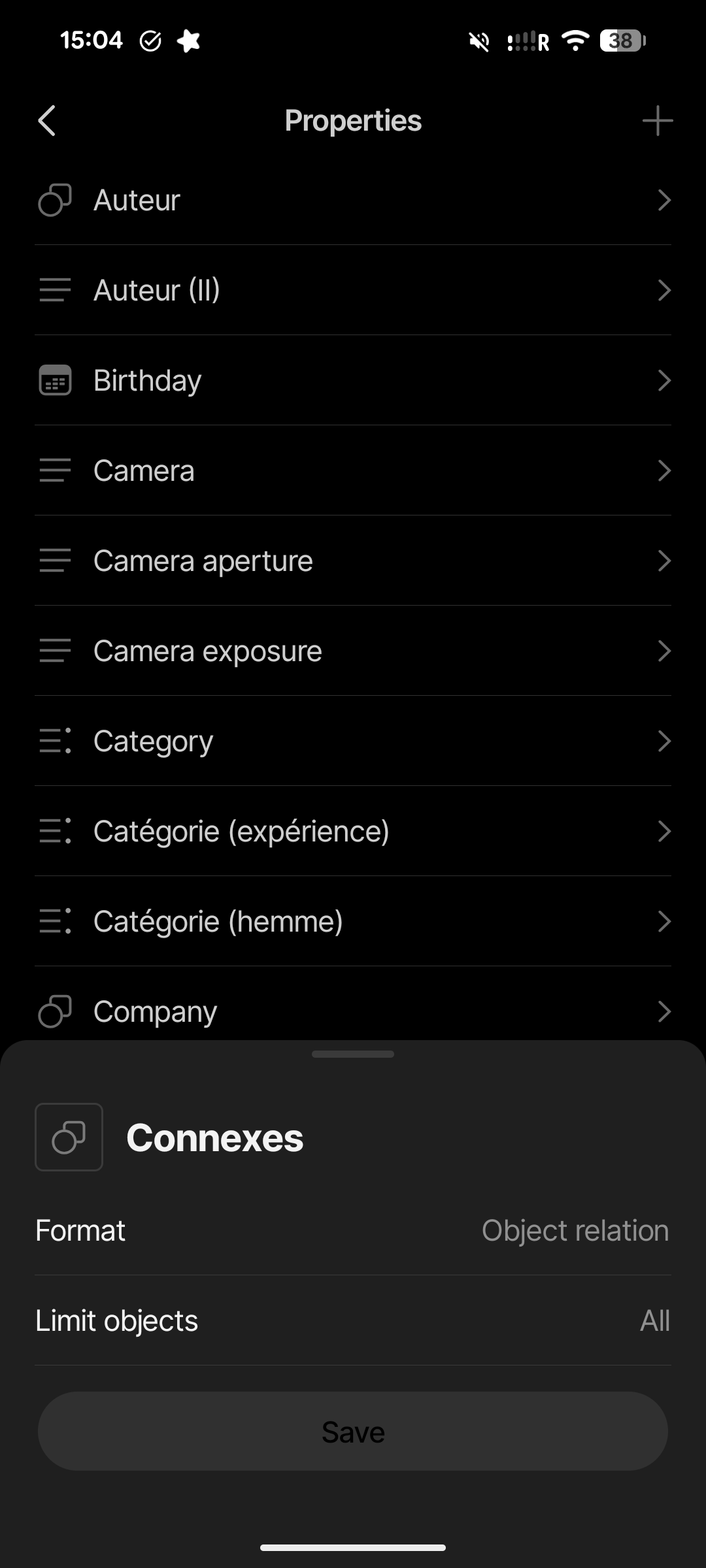
Go to Space settings → Propriétés → Connexes. There’s a row labelled “Limit objects to” (this one is still in English, sorry).
Please screenshot that screen, and tap the row to see the list of types inside.
What the same property looks like on Desktop
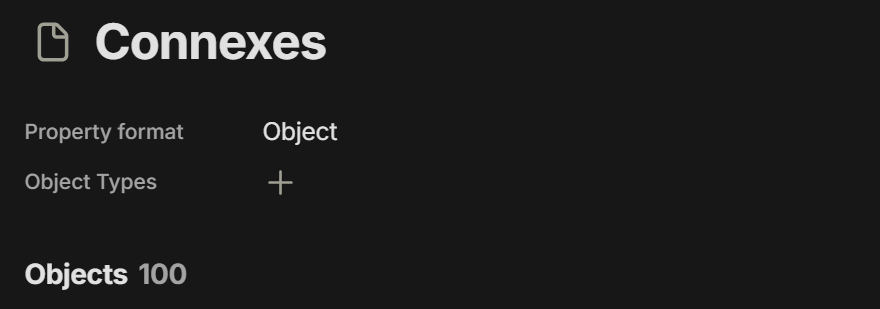
If you also use Anytype on desktop, please open the same Connexes property there and screenshot its object-type restriction.
(We’re asking for both on purpose — if the two disagree, that difference tells us exactly what’s broken.)
Does it work on Desktop?
On desktop, open the same object (“Anytype test: random task”) and click the Connexes property. Do you get a list of objects to
choose from there, or is it empty too?
No rush — screenshots of 1 and 2 are the most valuable, everything else is a bonus.
Thanks again for those screenshots, @Darifar — they’re what let
us find this.
Your two screenshots looked like they contradicted each other,
and that contradiction was the bug. The Connexes property does
have a hidden “limit to these object types” setting, pointing
at types that no longer exist in your space (likely deleted or
recreated at some point). The settings screen checks those
types, finds none, and reports Limit objects: All. The object
picker skipped that check and searched for objects of those
non-existent types — so nothing could ever match, and you got
the empty screen with no explanation.
Android now does the same check in both places: when a property
points only at types that no longer exist, it’s treated as
unrestricted, and the picker lists your objects normally. Real
type limits still work as before. We also made that empty
screen explain itself when a property genuinely is limited to a
type.
This is merged and ships in the next hotfix. In the meantime,
adding values from Desktop should work.
Once you’re on the new build, could you confirm Connexes
behaves for you? We fixed the underlying problem but can’t see
your actual space data, so your confirmation is the last piece.