WHAT DO YOU RECOMMEND?
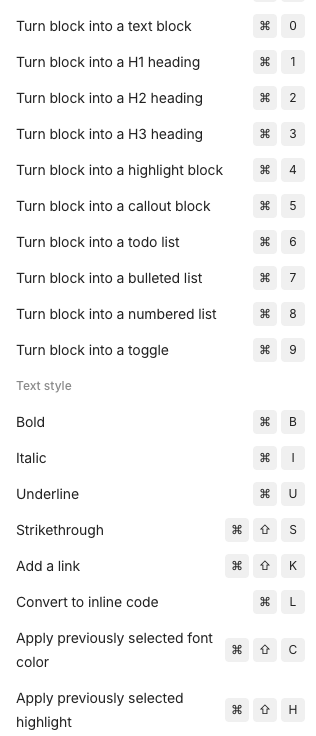
OneNote has a functionality where text styles (paragraph icon/bold/text color/highlight) can be instantly applied through a keyboard shortcut: e.g., CTRL-1, CTRL-2, etc.
This is very convenient when editing text and the hands stay on the keyboard - no clicking and menu diving.
HOW COULD IT BE DONE?
Option A:
- Allow users to define custom text styles (text color/highlight/bold/italic/accompanying icon)
- Allow users to instantly apply these styles to a current block with a user-defined keyboard shortcut
Option B:
Allow users to quick-apply user-defined text templates with a keyboard shortcut. E.g.,:
CTRL-1:  Important text
REAL WORLD USE CASES
Marking TODO items
Highlighting important lines or blocks with a single keystroke
Selecting items in a list
Quick-Applying a style to a table cell
Instant application of a style (e.g., quote style) to a block of text
Instant conversion of a line of text into a TODO item with a checkbox
RECOMMENDED ALTERNATIVES
Unknown, other than clicking a lot.
User-defined styles don’t exist in Anytype